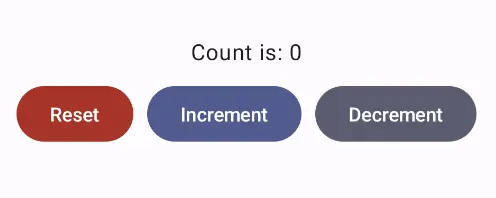
Android — Kotlin and Jetpack Compose
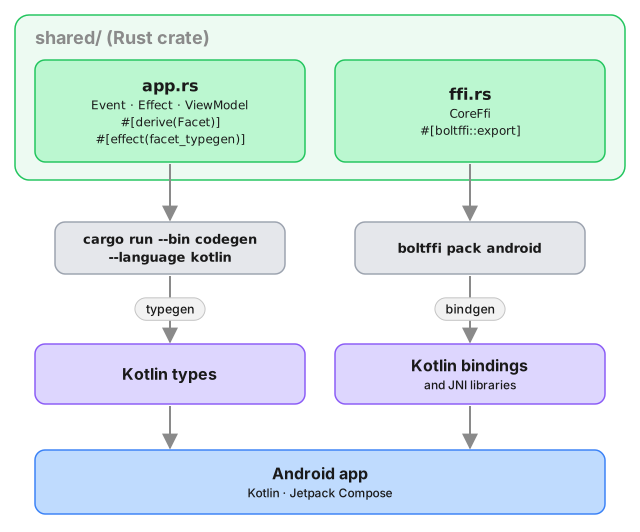
When we use Crux to build Android apps, the Core API bindings and native library assets are generated with BoltFFI.
The shared types are generated by Crux as Kotlin packages, which we
can add to our Android project using sourceSets. The Kotlin code
to serialise and deserialise these types across the boundary is also
generated by Crux.
These are the steps to set up Android Studio to build and run a simple Android app that calls into a shared core.
We want to make setting up Android Studio to work with Crux really easy. As time progresses we will try to simplify and automate as much as possible, but at the moment there is some manual configuration to do. This only needs doing once, so we hope it's not too much trouble. If you know of any better ways than those we describe below, please either raise an issue (or a PR) at https://github.com/redbadger/crux.
Create an Android App
The first thing we need to do is create a new Android app in Android Studio.
Open Android Studio and create a new project, for "Phone and Tablet", of type "Empty Activity". In this walk-through, we'll call it "SimpleCounter"
- "Name":
SimpleCounter - "Package name":
com.crux.examples.counter - "Save Location": a directory called
Androidat the root of our monorepo - "Minimum SDK"
API 34 - "Build configuration language":
Kotlin DSL (build.gradle.kts)
Your repo's directory structure might now look something like this (some files elided):
.
├── Android
│  ├── app
│  │  ├── build.gradle.kts
│  │  └── src
│  │     └── main
│  │        ├── AndroidManifest.xml
│  │        └── java/com/crux/examples/counter
│  │           ├── Core.kt
│  │           └── MainActivity.kt
│  ├── build.gradle.kts
│  ├── gradle.properties
│  ├── settings.gradle.kts
│  └── shared
│     └── build.gradle.kts
├── Cargo.lock
├── Cargo.toml
└── shared
   ├── Cargo.toml
   ├── boltffi.toml
   └── src
      ├── app.rs
      ├── bin
      │  └── codegen.rs
      ├── ffi.rs
      └── lib.rs
Add a Kotlin Android Library
This shared Android library (aar) is going to wrap our shared Rust library.
Under File -> New -> New Module, choose "Android Library" and give it the "Module name"
shared. Set the "Package name" to match your Android namespace.
Again, set the "Build configuration language" to Kotlin DSL (build.gradle.kts).
For more information on how to add an Android library see https://developer.android.com/studio/projects/android-library.
We can now add this library as a dependency of our app.
Edit the app's build.gradle.kts (/Android/app/build.gradle.kts) to look like
this:
import org.jetbrains.kotlin.gradle.dsl.JvmTarget

plugins {
    alias(libs.plugins.android.application)
    alias(libs.plugins.kotlin.android)
    alias(libs.plugins.kotlin.compose)
}

android {
    namespace = "com.crux.examples.counter"
    compileSdk {
        version = release(36)
    }

    defaultConfig {
        applicationId = "com.crux.examples.counter"
        minSdk = 34
        targetSdk = 36
        versionCode = 1
        versionName = "1.0"

        testInstrumentationRunner = "androidx.test.runner.AndroidJUnitRunner"
    }

    buildTypes {
        release {
            isMinifyEnabled = false
            proguardFiles(
                getDefaultProguardFile("proguard-android-optimize.txt"),
                "proguard-rules.pro"
            )
        }
    }
    compileOptions {
        sourceCompatibility = JavaVersion.VERSION_11
        targetCompatibility = JavaVersion.VERSION_11
    }
    kotlin {
        compilerOptions {
            jvmTarget = JvmTarget.JVM_11
        }
    }
    buildFeatures {
        compose = true
    }
}

dependencies {
    // our shared library
    implementation(project(":shared"))

    // added dependencies
    implementation(libs.lifecycle.viewmodel.compose)

    // original dependencies
    implementation(libs.androidx.core.ktx)
    implementation(libs.androidx.lifecycle.runtime.ktx)
    implementation(libs.androidx.activity.compose)
    implementation(platform(libs.androidx.compose.bom))
    implementation(libs.androidx.compose.ui)
    implementation(libs.androidx.compose.ui.graphics)
    implementation(libs.androidx.compose.ui.tooling.preview)
    implementation(libs.androidx.compose.material3)
    testImplementation(libs.junit)
    androidTestImplementation(libs.androidx.junit)
    androidTestImplementation(libs.androidx.espresso.core)
    androidTestImplementation(platform(libs.androidx.compose.bom))
    androidTestImplementation(libs.androidx.compose.ui.test.junit4)
    debugImplementation(libs.androidx.compose.ui.tooling)
    debugImplementation(libs.androidx.compose.ui.test.manifest)
}
In our Gradle files, we are referencing a "Version Catalog" to manage our dependency versions, so you will need to ensure this is kept up to date.
Our catalog (Android/gradle/libs.versions.toml) will end up looking like this:
[versions]
agp = "8.13.2"
kotlin = "2.3.0"
kotlinxCoroutines = "1.10.2"
coreKtx = "1.17.0"
junit = "4.13.2"
junitVersion = "1.3.0"
espressoCore = "3.7.0"
lifecycleRuntimeKtx = "2.10.0"
activityCompose = "1.12.3"
composeBom = "2026.01.01"
lifecycle = "2.10.0"

[libraries]
androidx-core-ktx = { group = "androidx.core", name = "core-ktx", version.ref = "coreKtx" }
junit = { group = "junit", name = "junit", version.ref = "junit" }
androidx-junit = { group = "androidx.test.ext", name = "junit", version.ref = "junitVersion" }
androidx-espresso-core = { group = "androidx.test.espresso", name = "espresso-core", version.ref = "espressoCore" }
androidx-lifecycle-runtime-ktx = { group = "androidx.lifecycle", name = "lifecycle-runtime-ktx", version.ref = "lifecycleRuntimeKtx" }
androidx-activity-compose = { group = "androidx.activity", name = "activity-compose", version.ref = "activityCompose" }
androidx-compose-bom = { group = "androidx.compose", name = "compose-bom", version.ref = "composeBom" }
androidx-compose-ui = { group = "androidx.compose.ui", name = "ui" }
androidx-compose-ui-graphics = { group = "androidx.compose.ui", name = "ui-graphics" }
androidx-compose-ui-tooling = { group = "androidx.compose.ui", name = "ui-tooling" }
androidx-compose-ui-tooling-preview = { group = "androidx.compose.ui", name = "ui-tooling-preview" }
androidx-compose-ui-test-manifest = { group = "androidx.compose.ui", name = "ui-test-manifest" }
androidx-compose-ui-test-junit4 = { group = "androidx.compose.ui", name = "ui-test-junit4" }
androidx-compose-material3 = { group = "androidx.compose.material3", name = "material3" }
lifecycle-viewmodel-compose = { module = "androidx.lifecycle:lifecycle-viewmodel-compose", version.ref = "lifecycle" }

kotlinx-coroutines-core = { group = "org.jetbrains.kotlinx", name = "kotlinx-coroutines-core", version.ref = "kotlinxCoroutines" }

[plugins]
android-application = { id = "com.android.application", version.ref = "agp" }
kotlin-android = { id = "org.jetbrains.kotlin.android", version.ref = "kotlin" }
kotlin-compose = { id = "org.jetbrains.kotlin.plugin.compose", version.ref = "kotlin" }
android-library = { id = "com.android.library", version.ref = "agp" }
The Rust shared library
We'll use the following tools to incorporate our Rust shared library into the Android library added above. This includes compiling and linking the Rust dynamic library and generating the runtime bindings and the shared types.
- The Android NDK
- BoltFFI builds the native libraries, generates
the Kotlin bindings, and writes the
jniLibs - The
codegenbinary (with thefacet_typegenfeature) generates the Kotlin app data types
The NDK can be installed from "Tools, SDK Manager, SDK Tools" in Android Studio.
Let's get started.
Add the four Rust Android toolchains to your system:
$ rustup target add aarch64-linux-android armv7-linux-androideabi i686-linux-android x86_64-linux-android
Edit the project's build.gradle.kts (/Android/build.gradle.kts) to look like
this:
// Top-level build file where you can add configuration options common to all sub-projects/modules.
plugins {
    alias(libs.plugins.android.application) apply false
    alias(libs.plugins.kotlin.android) apply false
    alias(libs.plugins.kotlin.compose) apply false
    alias(libs.plugins.android.library) apply false
}
Edit the library's build.gradle.kts (/Android/shared/build.gradle.kts) to look
like this:
import org.jetbrains.kotlin.gradle.dsl.JvmTarget

plugins {
    alias(libs.plugins.android.library)
    alias(libs.plugins.kotlin.android)
}

android {
    namespace = "com.crux.examples.counter"

    compileSdk {
        version = release(36)
    }

    defaultConfig {
        minSdk = 34
    }

    compileOptions {
        sourceCompatibility = JavaVersion.VERSION_11
        targetCompatibility = JavaVersion.VERSION_11
    }

    kotlin {
        compilerOptions {
            jvmTarget = JvmTarget.JVM_11
        }
    }

    sourceSets {
        getByName("main") {
            kotlin.srcDirs("${projectDir}/../generated")
            jniLibs.srcDirs("${projectDir}/../generated/jniLibs")
        }
    }
}

dependencies {
    // The generated `Core` runs each request on a `CoroutineScope` and
    // publishes the view model as a `StateFlow`, so both appear in this
    // module's API. The typegen's own `build.gradle.kts` declares this, but
    // these sources come in through `srcDirs` instead, so the module has to.
    api(libs.kotlinx.coroutines.core)
}
You will need to set the ndkVersion to one you have installed, go to "Tools, SDK Manager, SDK Tools" and check "Show Package Details" to get your installed version, or to install the version matching build.gradle.kts above.
As you can see, The sourceSets directive in the shared library Gradle
file points both kotlin.srcDirs and jniLibs.srcDirs at the generated
directory. Let's populate it.
First generate the data types using codegen:
$ # In `/Android`
$ cargo run --package shared --bin codegen --features codegen,facet_typegen -- --language kotlin --output-dir generated
Then generate the bindings and native libraries using BoltFFI:
$ # In `/shared`
$ boltffi pack android
Now your generated directory should look like this:
$ ls --tree Android/generated
Android/generated
├── build.gradle.kts
├── com
│  ├── crux
│  │  └── examples
│  │     └── counter
│  │        └── Counter.kt
│  └── novi
│     ├── bincode
│     │  ├── BincodeDeserializer.kt
│     │  └── BincodeSerializer.kt
│     └── serde
│        ├── BinaryDeserializer.kt
│        ├── BinarySerializer.kt
│        ├── ...
│        └── UInt128.kt
├── include
│  └── shared.h
├── jniLibs
│  ├── arm64-v8a
│  │  └── libshared.so
│  ├── armeabi-v7a
│  │  └── libshared.so
│  ├── x86
│  │  └── libshared.so
│  └── x86_64
│     └── libshared.so
└── kotlin
   ├── com
   │  └── crux
   │     └── examples
   │        └── counter
   │           └── Shared.kt
   └── jni
      └── jni_glue.c
codegen will generate a build.gradle.kts that we won't be using in this setup.
Any error reported by the IDE in this file can be ignored, and if the file prevents
buiding it can safely be deleted.
Create some UI and run in the Simulator
Wrap the core to support capabilities
First, let's add some boilerplate code to wrap our core and handle the
capabilities that we are using. For this example, we only need to support the
Render capability, which triggers a render of the UI.
Let's create a file "File, New, Kotlin Class/File, File" called Core.
This code that wraps the core only needs to be written once — it only grows when we need to support additional capabilities.
Edit Android/app/src/main/java/com/crux/examples/counter/Core.kt to look like
the following. This code sends our (UI-generated) events to the core, and
handles any effects that the core asks for. In this simple example, we aren't
calling any HTTP APIs or handling any side effects other than rendering the UI,
so we just handle this render effect by updating the published view model from
the core.
package com.crux.examples.counter

import androidx.compose.runtime.getValue
import androidx.compose.runtime.mutableStateOf
import androidx.compose.runtime.setValue
open class Core : androidx.lifecycle.ViewModel() {
    private var core: CoreFfi = CoreFfi()

    var view: ViewModel by mutableStateOf(
        ViewModel.bincodeDeserialize(core.view())
    )
        private set

    fun update(event: Event) {
        val effects = core.update(event.bincodeSerialize())

        val requests = Requests.bincodeDeserialize(effects).value
        for (request in requests) {
            processEffect(request)
        }
    }

    private fun processEffect(request: Request) {
        when (val effect = request.effect) {
            is Effect.Render -> {
                this.view = ViewModel.bincodeDeserialize(core.view())
            }
        }
    }
}
That when statement, above, is where you would handle any other
effects that your core might ask for. For example, if your core needs
to make an HTTP request, you would handle that here.
Edit /Android/app/src/main/java/com/crux/examples/counter/MainActivity.kt to
look like the following:
package com.crux.examples.counter

import android.os.Bundle
import androidx.activity.ComponentActivity
import androidx.activity.compose.setContent
import androidx.compose.foundation.layout.Arrangement
import androidx.compose.foundation.layout.Column
import androidx.compose.foundation.layout.Row
import androidx.compose.foundation.layout.fillMaxSize
import androidx.compose.foundation.layout.padding
import androidx.compose.material3.Button
import androidx.compose.material3.ButtonDefaults
import androidx.compose.material3.MaterialTheme
import androidx.compose.material3.Surface
import androidx.compose.material3.Text
import androidx.compose.runtime.Composable
import androidx.compose.runtime.rememberCoroutineScope
import androidx.compose.ui.Alignment
import androidx.compose.ui.Modifier
import androidx.compose.ui.graphics.Color
import androidx.compose.ui.tooling.preview.Preview
import androidx.compose.ui.unit.dp
import androidx.lifecycle.viewmodel.compose.viewModel
import com.crux.examples.counter.ui.theme.CounterTheme
import kotlinx.coroutines.launch

class MainActivity : ComponentActivity() {
    override fun onCreate(savedInstanceState: Bundle?) {
        super.onCreate(savedInstanceState)
        setContent {
            CounterTheme {
                Surface(
                    modifier = Modifier.fillMaxSize(),
                    color = MaterialTheme.colorScheme.background
                ) { View() }
            }
        }
    }
}

@Composable
fun View(core: Core = viewModel()) {
    val scope = rememberCoroutineScope()
    Column(
        horizontalAlignment = Alignment.CenterHorizontally,
        verticalArrangement = Arrangement.Center,
        modifier = Modifier.fillMaxSize().padding(10.dp),
    ) {
        Text(text = core.view.count, modifier = Modifier.padding(10.dp))
        Row(horizontalArrangement = Arrangement.spacedBy(10.dp)) {
            Button(
                onClick = { scope.launch { core.update(Event.RESET) } },
                colors =
                    ButtonDefaults.buttonColors(
                        containerColor = MaterialTheme.colorScheme.error
                    )
            ) { Text(text = "Reset", color = Color.White) }
            Button(
                onClick = { scope.launch { core.update(Event.INCREMENT) } },
                colors =
                    ButtonDefaults.buttonColors(
                        containerColor = MaterialTheme.colorScheme.primary
                    )
            ) { Text(text = "Increment", color = Color.White) }
            Button(
                onClick = { scope.launch { core.update(Event.DECREMENT) } },
                colors =
                    ButtonDefaults.buttonColors(
                        containerColor = MaterialTheme.colorScheme.secondary
                    )
            ) { Text(text = "Decrement", color = Color.White) }
        }
    }
}

@Preview(showBackground = true)
@Composable
fun DefaultPreview() {
    CounterTheme { View() }
}